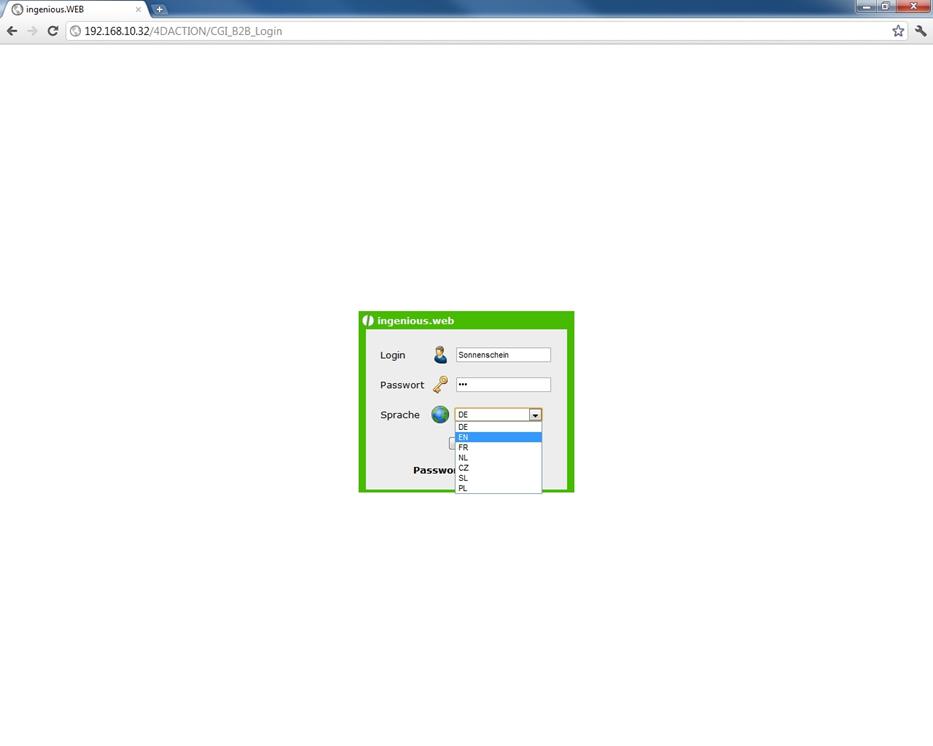
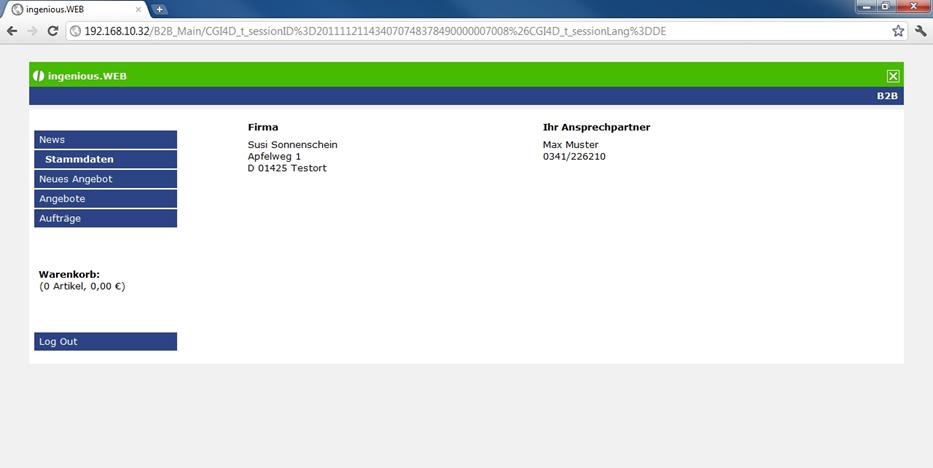
All web views can be configured for multiple languages. To do that, open the menu entry “Localization”.
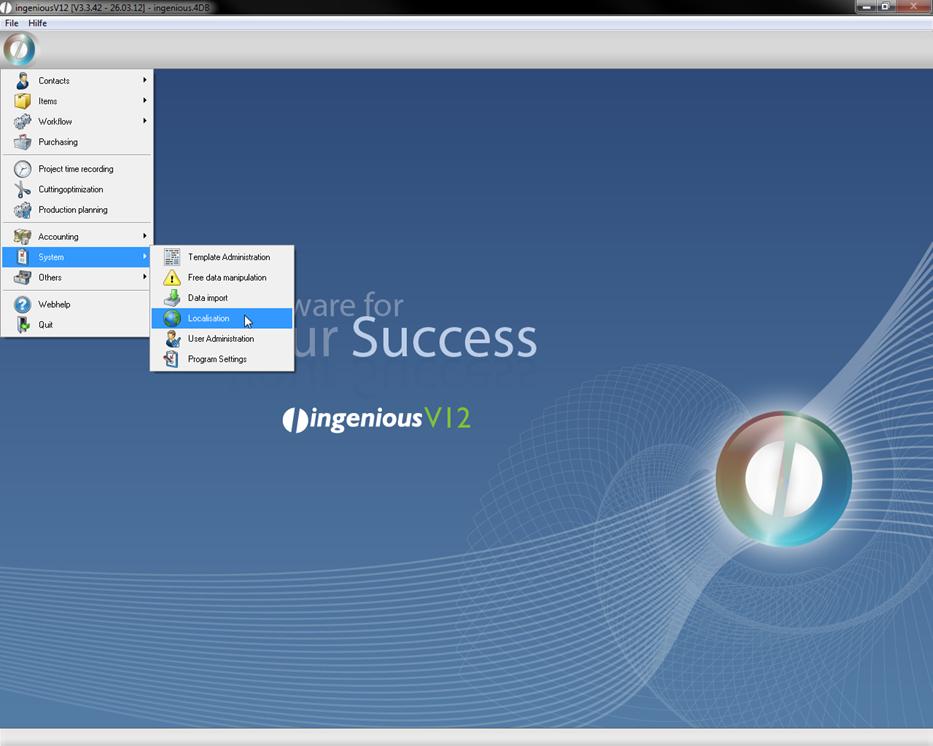
Localization
In the category “Free texts” you can translate the static texts of your web view in several languages. For a better understanding in the following practice we will keep to our example of the left menu.
Practice creating multilingual static texts
In the following we want to translate the menu items “News”, “Home”, “New Quote”, “Quote List”, “Order List” and “Log Out” to a new language (German).
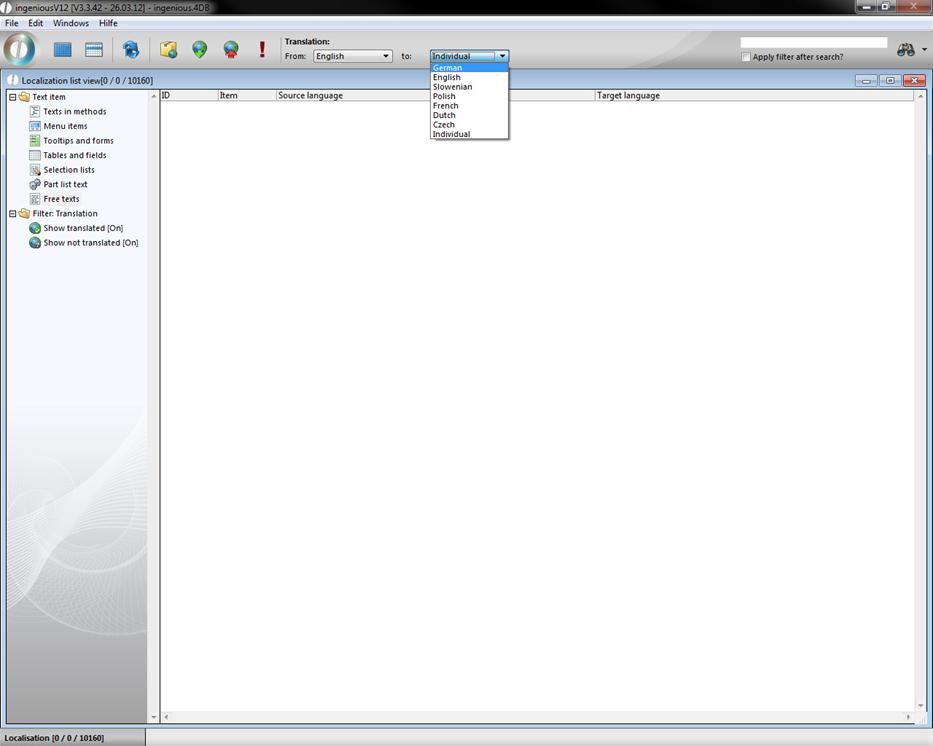
Open the Localization module and click on free texts in the selection list.
Now choose the desired translation in the upper navigation. In our case: “From English to German”. To create a new free text and translate it, click on the button  “modify free translations” and select in the drop down menu the option “create free texts”.
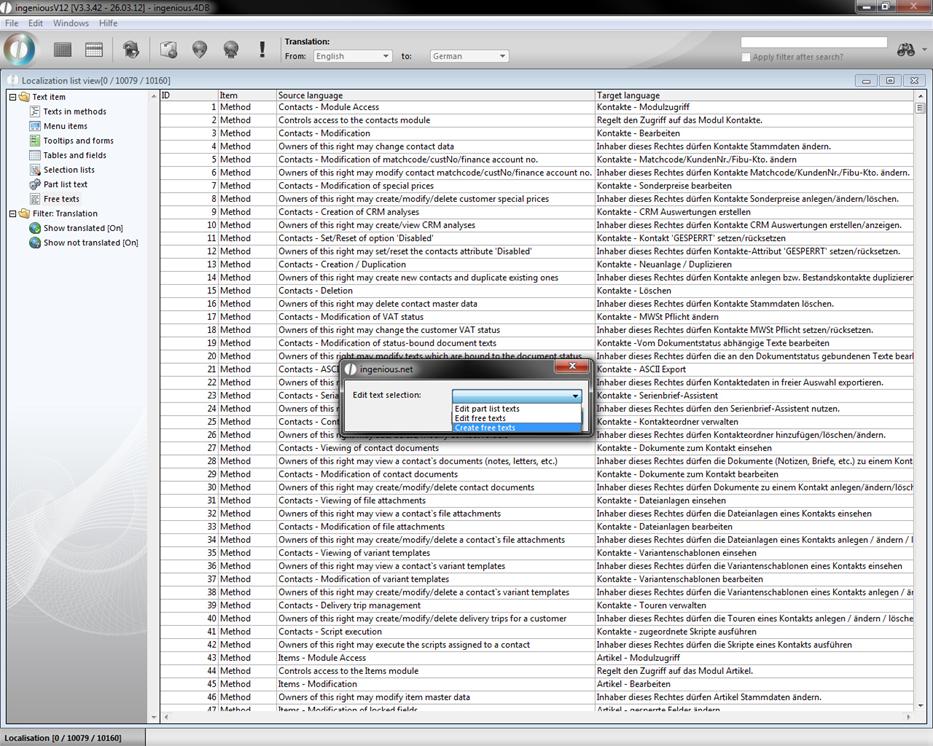
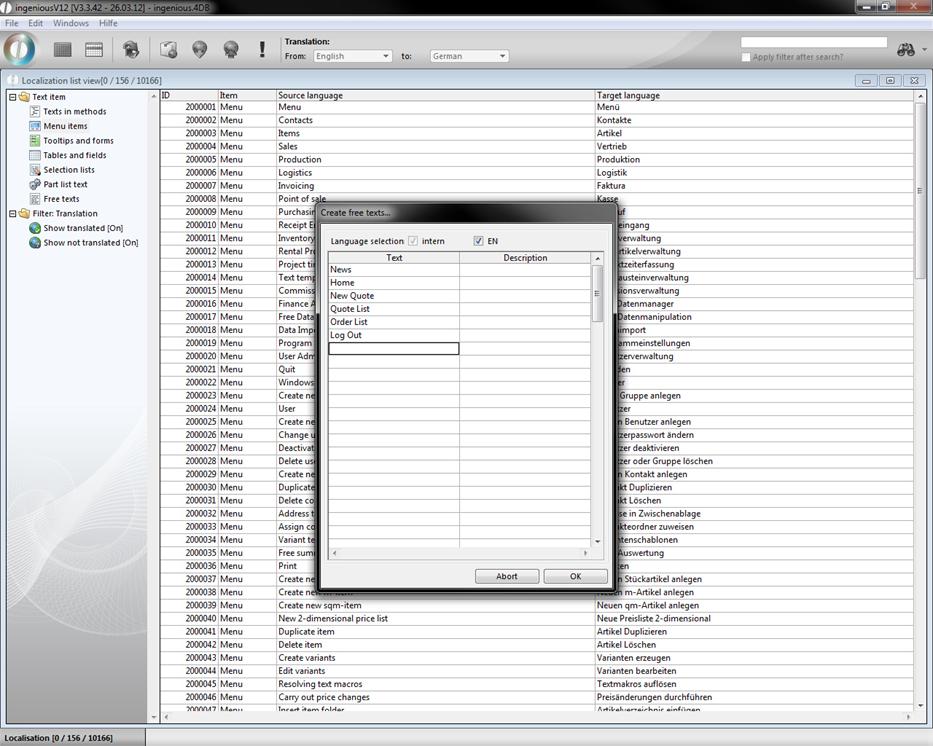
In the upcoming window you can enter the desired texts in English.
Now fill the fields with the menu entries “News”, “Home”, “New Quote”, “Quote List”, “Order List” and “Log Out” and check the field “EN”. A click on “OK” will create the texts.
When you double click on an entry in the list view the modification window will open up, where you can translate the text. You can edit all menu entries successive by clicking the  button.
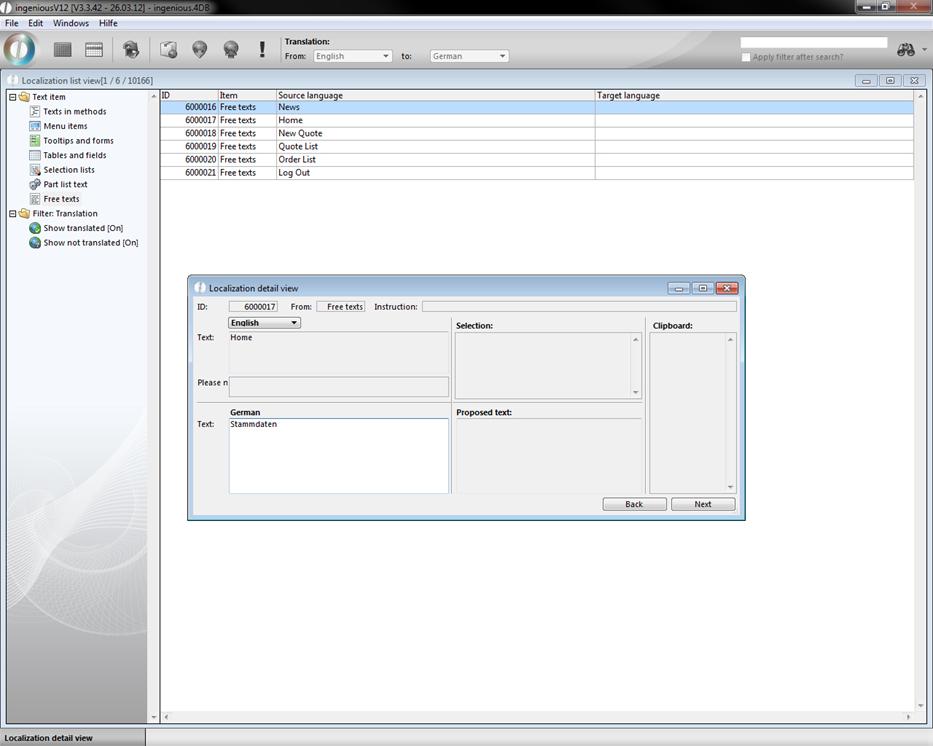
Now all your static texts like {{Home}} or {{New Quote}} are displayed in German when you select this language on the web access login screen.